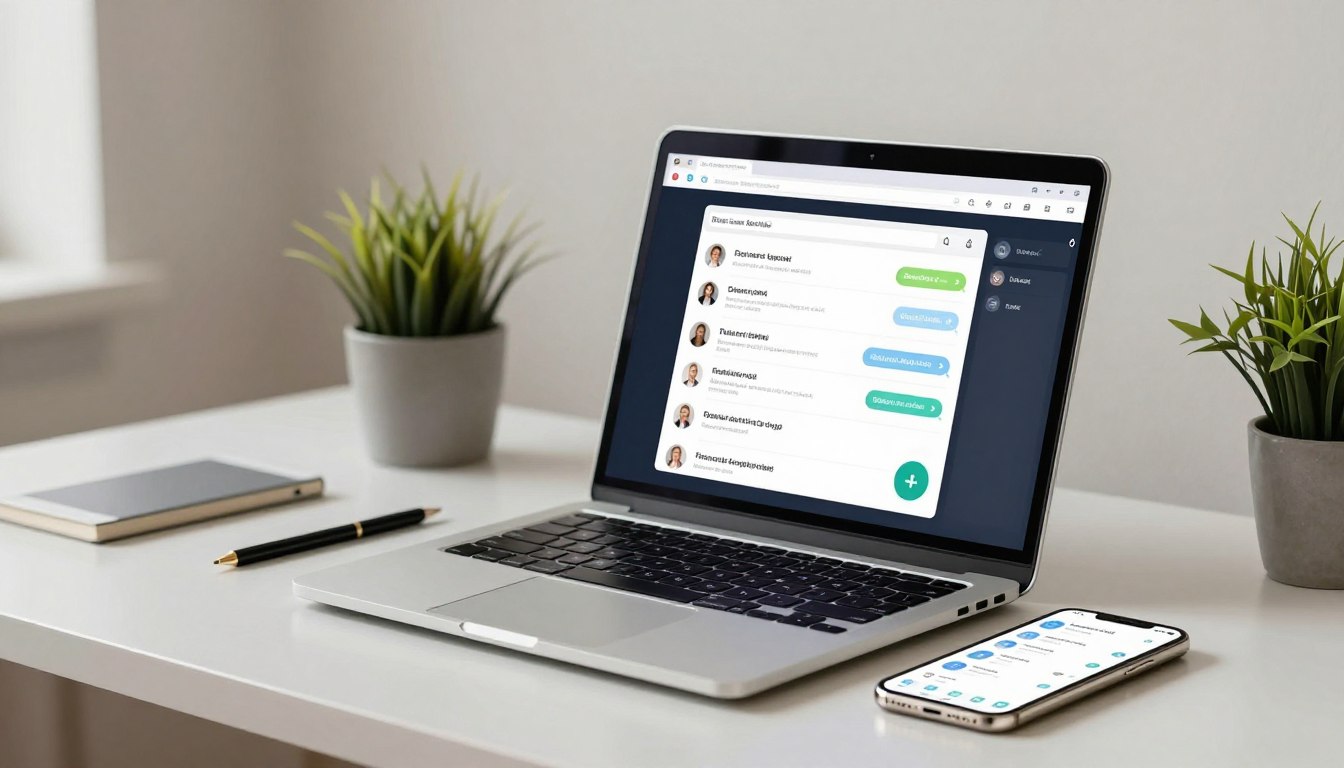
Yes, you can handle WhatsApp Business chats on a computer by linking the account you use on your phone. A linked device is a browser or computer session connected to the WhatsApp account on its primary phone. Computer access extends an account set up on a phone; it does not create a separate computer account.
This setup can make customer communication easier when you are already working at a desk. You can choose a browser or a dedicated app, then use the same business chats you manage on your phone. The right option depends on your computer and how you prefer to work.
Computer access connects to an account set up on a phone.
WhatsApp Web opens in a browser without installation.
WhatsApp Desktop is the installed computer program.
Your primary phone links new computer sessions.
Choose a browser for quick access or install WhatsApp Desktop if you prefer a dedicated computer app.
Can I Install WhatsApp Business on PC?
You do not create a separate PC account: you connect the WhatsApp Business account already set up on your phone. That connection lets your computer access the existing conversations instead of creating a second, independent profile.
The phone app holds the account, while a computer gives you another way to message customers. The WhatsApp Business app is free to download and use. Internet access and mobile service may still have their own costs.
Use a full keyboard to write longer customer replies, share files stored on the computer, or keep chats beside the tools you use for daily work. For example, you can answer a product question while reviewing an order in another window.
A computer session works with the account on your phone; it does not become a second independent business account.
The browser version is WhatsApp Web. The installed computer program is WhatsApp Desktop. Both provide access to a linked account, so the choice is about how you want to open chats, not where the account lives.
A download install gives you a computer app only when you choose the installed route. WhatsApp Web needs no computer app, and neither option changes the account created on your phone.
For ordinary customer messaging, the free app and its linked computer access are the relevant starting point.
Which WhatsApp Business Computer Option Should You Use?
WhatsApp Web is the quickest choice if you want to open chats in a browser without installing an app. For occasional use, a browser tab keeps setup simple and avoids adding another program to the computer.
WhatsApp Desktop needs a supported operating system and an app-store download. The Windows app requires Windows 10.1 64-bit, version 1903 or later. The Mac app requires macOS 11 or later.
Use this comparison to pick the access method that suits your computer and routine:
Option
How you open it
Requirement or download route
WhatsApp Web
Browser at web.whatsapp.com
No installation
Windows app
Installed desktop app
Windows 10.1 64-bit, version 1903 or later; Microsoft App Store
Mac app
Installed desktop app
macOS 11 or later; Apple App Store
WhatsApp Business Web runs in a web browser at web.whatsapp.com. It can be handy when you use a shared work computer or only need to answer messages now and then. You do not need to download a desktop app to open that page.
The installed app suits someone who prefers a dedicated computer window. It keeps the messaging program separate from browser tabs, which can make it easier to find during a busy workday.
Both routes provide computer access to the same phone-based business account. They are not separate accounts, and choosing one does not mean you need to abandon the other.
If you switch between a work laptop and a home computer, think about where you want chats to appear and whether you can install apps on each machine. A browser may be simpler on a computer with limited installation permissions.
Check the computer’s operating system before choosing an installed app.
How Do You Download, Install and Link WhatsApp Business?
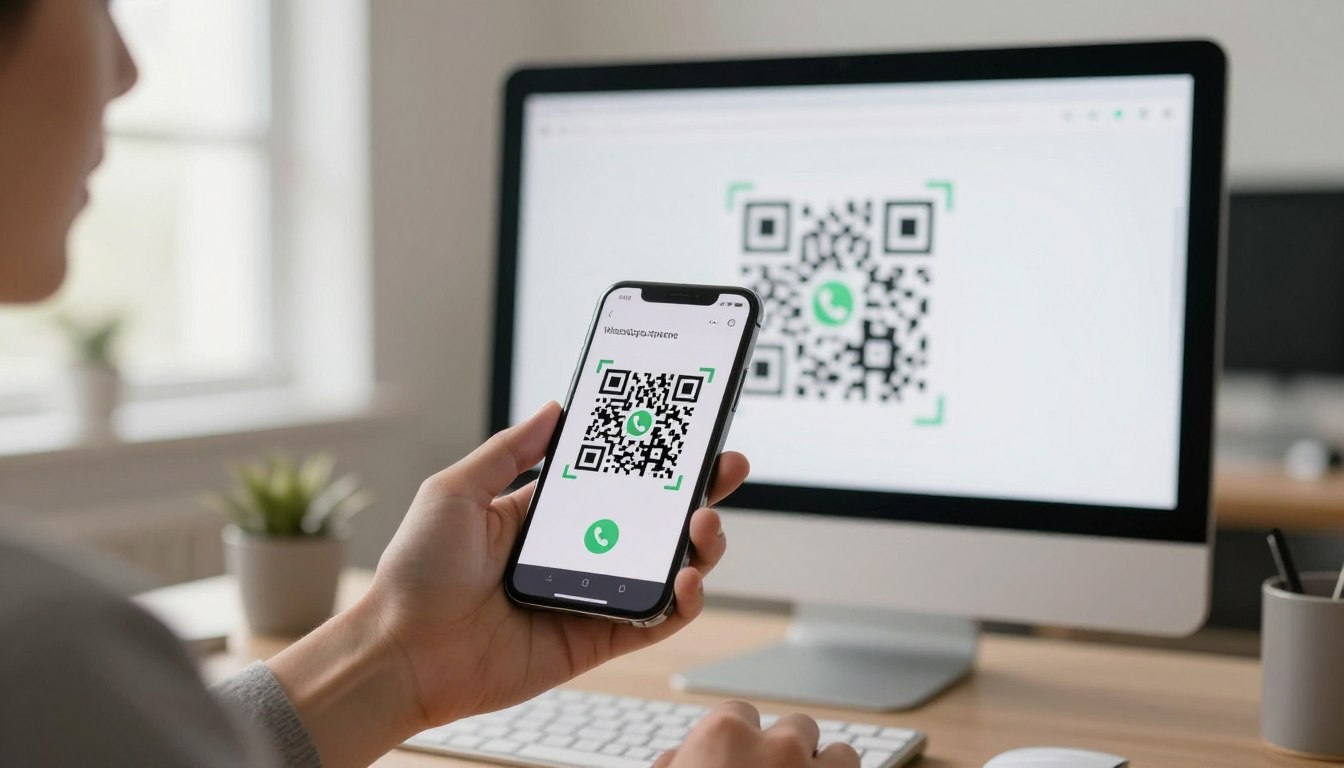
Start with the computer screen, where the browser page or installed app displays the QR code you will scan. The QR code connects the computer session to the account already open on your phone.
Open WhatsApp Business on the primary phone and use Linked Devices to begin the connection. Your phone must be online while it scans the computer’s QR code.
Set up WhatsApp Web
On the computer, go to web.whatsapp.com. The page displays a QR code for linking. On the phone, open WhatsApp Business, find Linked Devices, and choose Link a Device.
Keep the QR code visible on the computer while you use the phone camera to scan it. The phone needs an internet connection during this setup, so connect it before beginning if it is offline.
Install WhatsApp Desktop
Windows users can get WhatsApp Desktop through the Microsoft App Store. Mac users can find the app through the Apple App Store. Open the installed program after download and let it display its QR code.
Use the same phone flow for either installed app. Linked Devices and Link a Device connect the account, so you do not need a different setup process for Windows or Mac.
Follow these shared linking actions in order:
Open the computer page or installed app.
Open Linked Devices on the phone.
Tap Link a Device.
Scan the computer’s QR code with the phone.
If the code expires before you scan it, refresh the computer page or reopen the app to show a new one. Keep the phone camera steady and make sure the entire code fits inside its frame.
Confirm that the linked account’s chats appear on the computer before starting customer replies.
How Many Devices Can You Link, and Can WhatsApp Work Without Your Phone?
You can link up to four companion devices to the primary phone, while a WhatsApp Business account’s total device limit is five or up to 10 with Meta Verified. Those figures describe different limits: one counts companion devices connected to the phone, and the other counts the account’s total supported devices.
The primary phone is needed to register the account and link new devices. After a computer has been linked, WhatsApp Web can keep working while the phone is offline for up to 14 days.
For the regular linked-device feature, WhatsApp lets you connect up to four devices at a time to the primary phone. A WhatsApp Business account can connect to five web-based devices or mobile phones in total. With Meta Verified, that account limit can rise to 10.
The phone still matters for account registration and for linking another computer. It does not have to remain online continuously after setup for WhatsApp Web to keep working during the stated offline period.
Keep these checks in mind as you manage access:
Keep the primary phone available for account setup.
Link new sessions while the phone is online.
Review which linked sessions remain useful.
A computer that stays logged in can remain useful when the phone has no connection, such as during travel or a temporary service outage. The offline window begins after the device has been linked.
Relink from the primary phone before the 14-day offline period ends if you need to keep using WhatsApp Web.
What Phone Number and Account Do You Need?
You can keep personal WhatsApp and WhatsApp Business on one phone if each account uses a different number. One number cannot serve as both active accounts at once.
Business account registration requires a phone number verified by SMS or a phone call. Once verified, you can add a business name, category, and profile image to the business profile.
The two accounts can coexist on one mobile device when they use separate numbers. This arrangement lets you keep personal conversations apart from customer chats without carrying two phones. Personal and business accounts can coexist on the same device under that condition.
Choose a number that your business can keep using and that can receive the verification message or call. The number becomes the one customers use to reach the business account.
During setup, enter the number and complete the verification step. Then fill in the business name, category, and profile image so customers can recognize the profile in a conversation.
If you previously used WhatsApp Business, the app can restore a prior WhatsApp Business backup. It can also move account information from WhatsApp Messenger, which may help if you are switching from regular WhatsApp.
You can allow access to contacts to make it easier to find people you already know. Photos and documents can be allowed as needed when you want to share those files from the phone app.
Decide which number customers should use before verifying the business account.
How Can You Keep Linked Chats Secure?
Linked computer sessions use end-to-end encryption for WhatsApp Business messages and calls. That protects message content as it moves between participants, but it does not secure an unlocked computer or an unattended browser session.
Protect the computer and the open session as well as the conversation. Someone with access to an unlocked machine may be able to view chats on its screen, even when messages are encrypted in transit.
Keep these three access checks part of your routine:
Link only computers you trust.
Avoid leaving a session open on a shared computer.
Review Linked Devices and log out of any session you do not recognize.
Shared work areas deserve extra care. A browser left open at the counter or in a meeting room can expose customer conversations to someone who uses the computer next.
Linked Devices gives you a way to review active sessions and log out from the phone. If a computer is sold, returned, or used by someone else, remove its access rather than relying on the person to close the window.
Encryption does not replace a screen lock or careful sign-out habits. Treat a linked browser session like an open business inbox, especially when customer details appear in notifications or chat previews.
Log out of any computer you no longer control, even if you previously trusted it.
When Does a Business Need the WhatsApp Business Cloud API?
The phone app with linked computer access suits a small business that manages its own customer conversations, while programmatic access is designed for larger-scale needs. The main difference is whether people handle chats directly or software connects messaging to business systems.
The WhatsApp Business app is for small businesses personally managing conversations; the business platform supports programmatic access for medium to large businesses.
This comparison shows which route fits common business needs:
Option
Best fit
Access and capabilities
WhatsApp Business app
Small businesses personally managing conversations
Phone app with linked Web or Desktop access
WhatsApp Web or Desktop
Businesses handling everyday chats on a computer
Linked account; no direct broadcast sending
WhatsApp Business Cloud API
Medium to large businesses needing programmatic access
Registered phone number; advanced integrations and automation
WhatsApp Business broadcasts can reach up to 256 contacts at a time through the mobile app. WhatsApp Web and WhatsApp Desktop do not support sending broadcasts directly.
The WhatsApp Business Cloud API lets a business connect messaging with software and automated workflows. Before it can send or receive messages through the API, a phone number must be registered.
The number must belong to the registrant, include a country code and area code, and receive voice calls or SMS. A short code is not eligible for Cloud API registration.
A number already used with WhatsApp must first be deleted from WhatsApp before it can be registered for the API. If the number is banned, it must be unbanned through the appeal process before registration.
Cloud API registration also requires setting a two-step verification PIN. These requirements affect whether a business can move an existing number or should prepare a different number for programmatic messaging.
Check number eligibility and account migration implications before starting Cloud API registration.
What If Your Computer Cannot Run WhatsApp Desktop?
If your computer cannot run WhatsApp Desktop, WhatsApp Web is the practical fallback. A browser can provide access when the computer’s operating system does not support the installed program.
Windows 10.1 64-bit, version 1903 or later, is required for WhatsApp Desktop on Windows. Windows 10 and Windows 11 users can use the desktop app when their computers meet that exact requirement.
Check Windows compatibility
Windows 10 and Windows 11 are not enough by themselves to confirm compatibility. Check whether the system is 64-bit and whether its version is 1903 or later before installing the program.
Windows 7 does not meet the listed Windows desktop requirement. If your computer still runs Windows 7, use WhatsApp Web in a supported browser instead of trying to install WhatsApp Desktop.
Mac users need macOS 11 or later for the installed app. A Mac with an older operating system can use WhatsApp Web as an alternative when its browser supports the site.
Use a browser when the app is unsupported
WhatsApp Web is available for operating systems that do not support the desktop app. Open web.whatsapp.com in a browser to use the linked business account without installing the computer program.
This browser route can also help when a work computer blocks app installation. You can use the browser window for customer conversations while leaving the operating system unchanged.
Do not keep retrying an installation when the computer misses the operating system requirement; use WhatsApp Web instead.
Business Windows computers can vary by architecture and installed version, even when their screens and keyboards look alike. The exact system details determine whether the desktop app can run.
Check the operating system version and architecture before troubleshooting a failed desktop installation.
Conclusion
WhatsApp Business works on a PC when you connect the computer to the account set up on your phone. You can use WhatsApp Web in a browser or choose WhatsApp Desktop as the installed computer program.
The account remains phone-based, while the computer gives you another place to manage customer chats. Choose the browser or app that fits your computer and your work habits.
Open WhatsApp Web or install the compatible desktop app and link your first computer from the primary phone.
FAQ
Can I use WhatsApp Business without a phone number?
No, WhatsApp Business account setup requires a phone number that you can verify by SMS or phone call. The number identifies the account and becomes the contact customers use to reach your business. You also need a primary phone to register the account and connect a computer, so a computer alone cannot replace the number-based setup.
Can I use WhatsApp on my PC without a phone?
You need a primary phone to set up the account and link a computer, but the phone does not need to stay online continuously afterward. Once linked, WhatsApp Web can continue working while the phone is offline for up to 14 days. You still need the primary phone to register the account or connect another device.
How long can you use WhatsApp desktop without a phone?
WhatsApp Web can keep working while the primary phone is offline for up to 14 days after linking. The phone is still needed to register the account and link new sessions. If you need to keep using the web session beyond that offline period, reconnect and link from the primary phone before the period ends.
Can I have two WhatsApp accounts?
Yes, you can use personal WhatsApp and WhatsApp Business on one phone when each account has a different number. This lets you separate personal chats from customer conversations on the same mobile device. A single phone number cannot serve as both active accounts at once, so choose a distinct number for each profile.
Can you use the same number for WhatsApp and WhatsApp Business?
No, you need different numbers for active personal WhatsApp and WhatsApp Business accounts. One number cannot run both accounts at the same time. If you want a business profile, select a number customers can reach and verify it during setup. You can keep both accounts on one phone when they use separate numbers.
If you want to dig further into clwa's geospatial tech, read our CLWA's Geospatial Tech guide.
Dealing with a slow computer can be frustrating, impacting productivity and user experience. Slow performance is a common issue that can stem from various software and hardware-related causes. This article will provide 10 actionable fixes to improve your computer’s performance. These solutions range from simple, no-cost fixes to more advanced hardware upgrades, making it accessible…
The term Personal Computer has become an integral part of our daily lives. Originally coined to distinguish standalone computing machines for individual users, the term has evolved significantly over the years. The acronym “PC” now encompasses not just desktops and laptops but also advanced hybrid devices used across various industries. As technology continues to advance,…
The Sony DualSense controller, the flagship accessory for the PS5, has revolutionized gaming with its haptic feedback and adaptive triggers. This innovative controller is not just limited to console gaming; it can also enhance your PC gaming experience. With the PS5 controller, you can enjoy your favorite PC games with the comfort and precision it…
Apple AirPods are designed to seamlessly integrate with Apple devices, but their Bluetooth capability allows them to connect to Windows PCs as well. This versatility makes AirPods a convenient choice for users across different ecosystems. Our comprehensive guide will walk you through the process of pairing your AirPods with a Windows system. We’ll cover the…
When your computer or device experiences problems, using Safe Mode can be an effective way to troubleshoot the issue. This mode loads only the essential files and drivers, making it easier to identify and resolve system problems. Our comprehensive guide will walk you through the process of accessing Safe Mode across different operating systems, including…
Moving photos from your iPhone to your computer is a common task, but it can be daunting with the various methods available. This comprehensive guide is designed to simplify the process for Windows users. We’ll explore multiple approaches, including wired and wireless transfer options, to cater to different user preferences. Native Windows tools, Apple software,…