Building your own computer can be a rewarding experience, offering a deeper understanding of how each component works together to create a customized system that meets your specific needs.
With careful planning and attention to detail, you can create a power-efficient system that is tailored to your budget and requirements. This comprehensive guide will walk you through the process, from selecting the right components to the final assembly, ensuring that you gain the skills and knowledge needed to tackle this project with confidence.
By taking control of the build process, you’ll not only gain a better understanding of your computer‘s inner workings but also develop a valuable skillset that can be applied to future projects.
Understanding the Benefits of Building Your Own PC
Building your own PC can be a rewarding experience, offering numerous benefits over purchasing a pre-built system. One of the primary advantages is the ability to tailor your computer to your specific needs, whether it’s for gaming, video editing, or general use.
Cost Efficiency vs. Pre-Built Systems
Building your own PC is often more cost-effective than buying a pre-built system. By selecting components yourself, you can allocate your budget more efficiently, avoiding unnecessary markups. This approach allows you to prioritize spending on critical components like the motherboard, which is crucial for determining system compatibility and performance.
Customization Options for Your Specific Needs
Custom PC building enables users to choose the exact specifications they need, ensuring their system is optimized for their particular requirements. This is particularly beneficial for gaming enthusiasts who require high-performance graphics and processing power. By customizing their PC, they can save on less critical components.
The process of building a PC teaches valuable tech skills, including component selection, hardware installation, and system optimization. As the topic of custom PC building gains popularity, beginners can now more easily access the knowledge needed to assemble their own systems. This hands-on experience not only enhances technical knowledge but also provides a sense of accomplishment.
Planning Your PC Build: Essential Preparations
To ensure a smooth PC building experience, thorough preparation is key. This involves several crucial steps that will help you create a computer that meets your needs without breaking the bank.
Setting a realistic budget is the first step in planning your PC build. It determines which components you can afford and where you should prioritize your spending. Using a pc building budget calculator can help you stay on track.
Determining Your PC’s Primary Purpose
When determining your computer’s primary purpose, consider whether you’ll be using it for gaming, content creation, office work, or a combination of tasks. This will help you decide on the necessary components and their specifications.
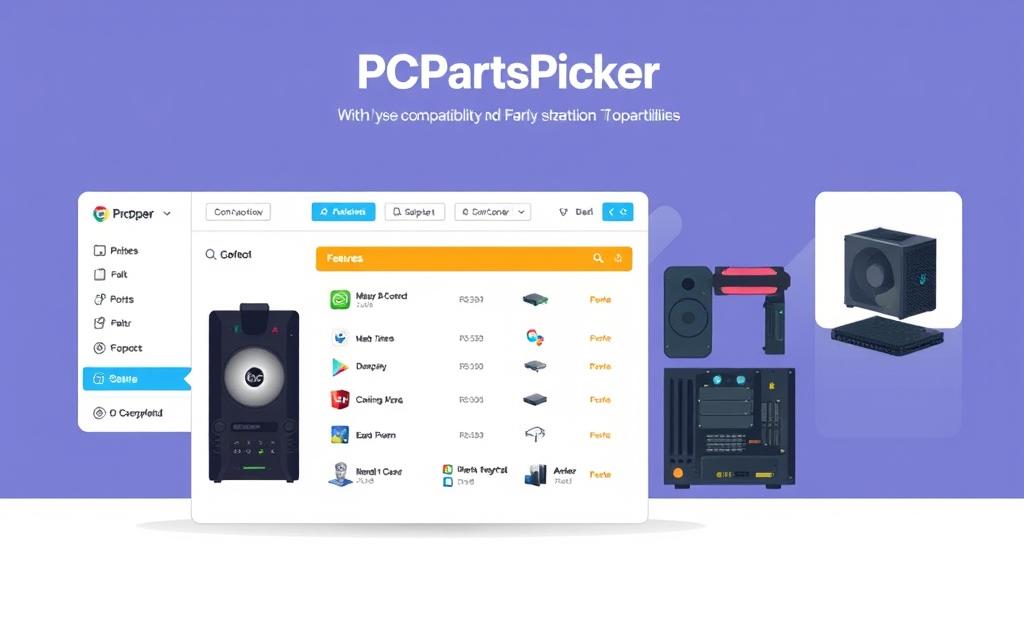
PCPartPicker is an essential tool that helps ensure all your selected components are compatible, preventing costly mistakes in the ordering process. It’s a good practice to run your chosen parts through PCPartPicker to verify compatibility, even if you’re confident in your selections.
The order in which you select components matters – typically starting with CPU choice, then picking motherboard options that support that processor. Seeking tech advice from experienced builders or online communities can be invaluable, especially for beginners overwhelmed by technical specifications.
Consider future-proofing your build by selecting components that will remain relevant for several years, even if it means spending a bit more upfront. Researching current tech trends and upcoming hardware releases can help you make informed decisions about the timing of your purchase and the order in which you buy components.
How to Build a PC: Components You’ll Need
The foundation of a great PC lies in its components, which must be carefully selected to meet your needs. Building a PC is not just about throwing together a bunch of parts; it’s about creating a system that is tailored to your specific requirements, whether that’s for gaming, content creation, or basic productivity.
Essential Components Checklist
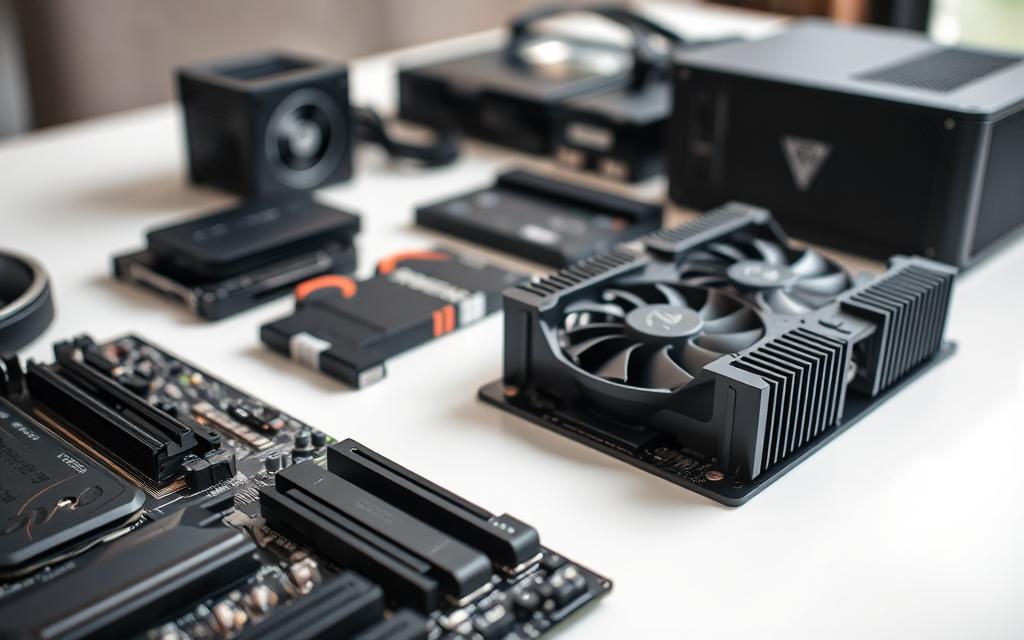
To build a functional PC, you’ll need several key components. These include:
A motherboard, which acts as the central hub connecting all parts of your PC.
A Central Processing Unit (CPU), often referred to as the “brain” of your computer.
RAM (Memory), which provides working memory for your system.
Storage drives, such as Solid State Drives (SSDs), which are recommended for their speed.
A Power Supply Unit (PSU), which must provide sufficient wattage for all your components.
A case to house all your components.
A Graphics Card (GPU), especially if you plan on gaming or content creation.
Depending on your needs, you might also want to consider additional components such as extra cooling solutions, RGB lighting, or specialized input/output devices. For instance, if you’re planning to overclock your CPU or GPU, a high-quality cooling system is essential.
Required Tools and Workspace Setup
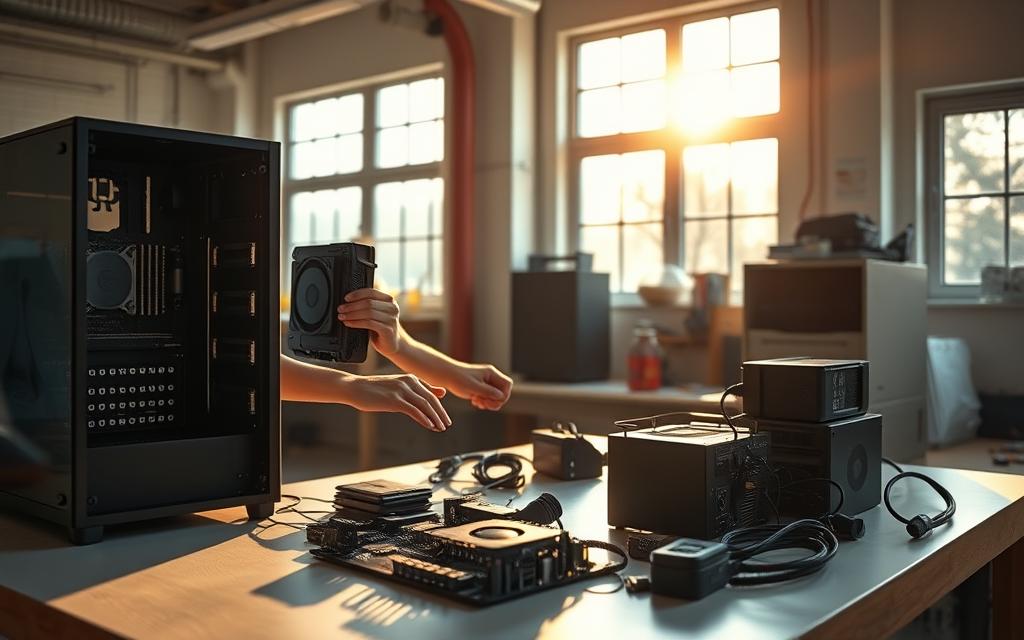
Before you start assembling your PC, make sure you have the necessary tools and a suitable workspace. Basic tools include a Phillips screwdriver and an anti-static wrist strap to prevent damage to your components. A clean, well-lit workspace with plenty of room to maneuver is also crucial.
By carefully selecting your components and preparing your workspace, you’ll be well on your way to building a PC that meets your needs. Remember, the order in which you assemble your PC can impact the ease of the process, so plan accordingly.
Selecting the Perfect Case and Motherboard
The foundation of a great PC build lies in the selection of its case and motherboard. When choosing these components, it’s crucial to consider both form and function.
Case Sizes and Form Factors
First, consider the physical size of the case and where the computer will live. If it has to fit on a shelf or you have limited space on your desk, those constraints should come first. Manufacturers label cases by the largest size of motherboard they support, with ATX being the most common size for home desktops.
When selecting a case, consider both aesthetics and functionality, including available space, airflow requirements, and compatibility with your chosen motherboard form factor.
Motherboard Types and Socket Compatibility
Motherboard form factors (ATX, Micro-ATX, Mini-ITX) determine the physical size of the board and affect how many expansion slots and features can be included. To pick motherboard options wisely, ensure the motherboard socket matches your chosen CPU.
Connectivity and Expansion Options
Professional advice suggests selecting a case with good cable management features to improve airflow and create a cleaner build. Consider front panel connectivity options on both the case and motherboard, ensuring access to necessary USB ports and audio connections.
Expansion options on the motherboard, including PCIe slots, M.2 slots for SSDs, and RAM slots, should align with both current needs and potential future upgrades.
Choosing Your CPU and Cooling Solution
The CPU, or Central Processing Unit, is the backbone of your computer, determining its overall performance and efficiency. It’s essential to choose a CPU that fits your needs, whether you’re a gamer, content creator, or casual user.
AMD vs. Intel: Current Generation Comparison
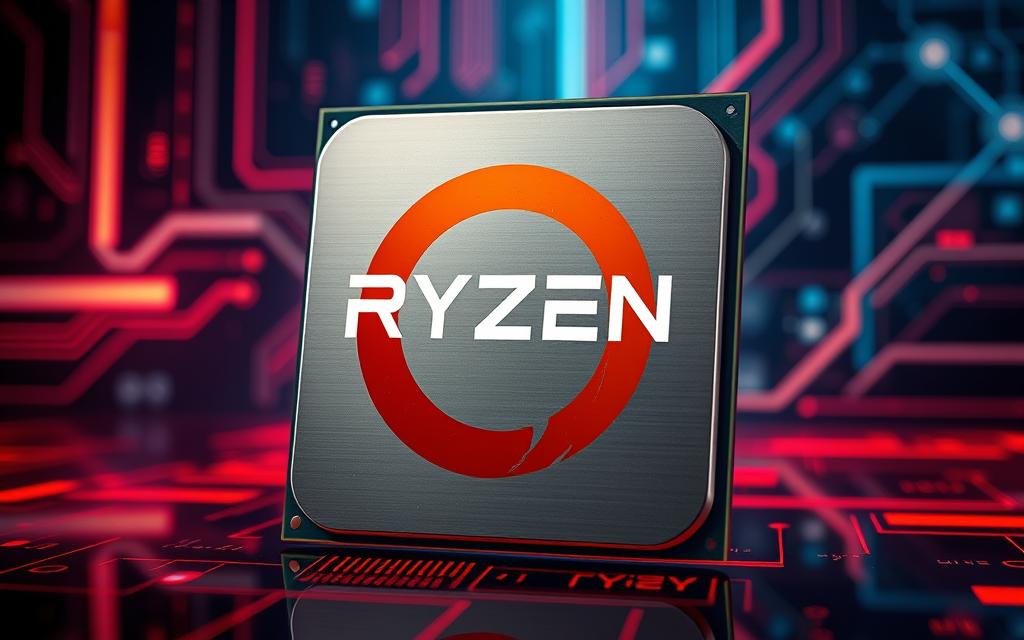
When deciding between AMD and Intel, consider their strengths: AMD offers excellent price-to-performance ratios, while Intel excels in single-core performance. For instance, AMD’s Ryzen series has gained popularity for its multitasking capabilities, whereas Intel’s Core i9 series is renowned for its high clock speeds.
To make an informed decision, understand key CPU specifications: core count, thread count, clock speeds (base and boost), cache size, and power consumption (TDP). A higher core count benefits multitasking, while higher clock speeds enhance single-threaded performance. Ensure the CPU is compatible with your motherboard, as the socket type must match exactly.
Air Cooling vs. Liquid Cooling Options
Proper cooling is crucial for CPU performance and longevity. Air coolers, such as those from Cooler Master, offer cost-effective solutions with simple installation. Liquid cooling, on the other hand, provides superior thermal performance for high-power processors. The choice depends on your CPU’s power requirements and your system’s tech configuration.
Modern CPUs draw significant power under load, so understanding their power requirements is essential for selecting an appropriate cooling solution and motherboard.
Graphics Cards, Memory, and Storage Selection
A well-performing PC requires careful consideration of its graphics processing unit (GPU), memory (RAM), and storage solutions. When it comes to gaming and graphics-intensive tasks, the GPU is a critical component.
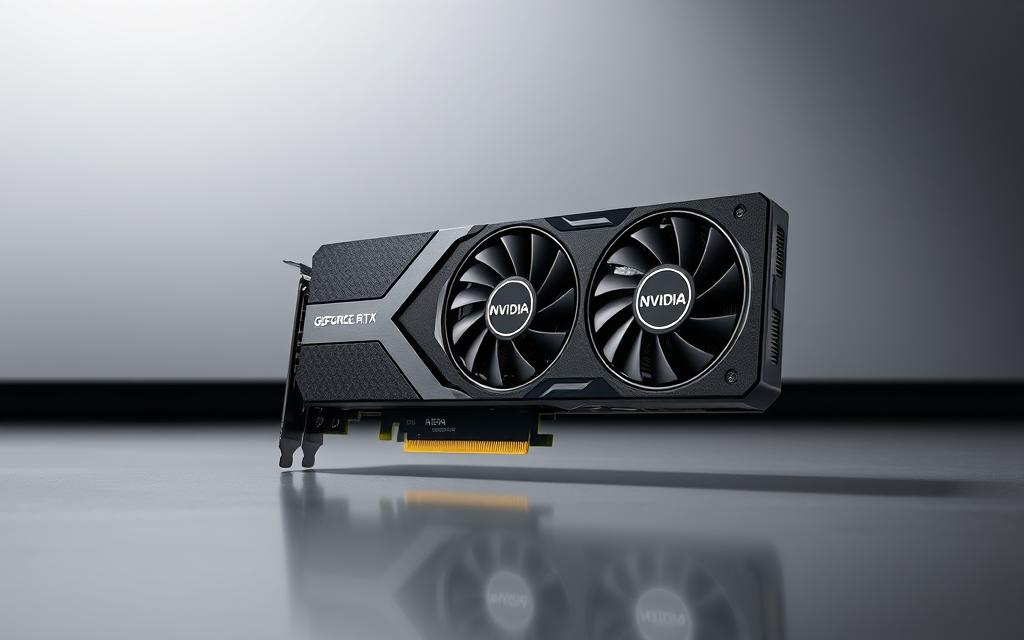
For gaming in 2025, you’ll want a GPU that can handle the demands of modern games at your monitor‘s resolution. Options from NVIDIA (RTX 50-series) and AMD (Radeon RX 9000-series) offer various performance tiers to match your budget and monitor resolution.
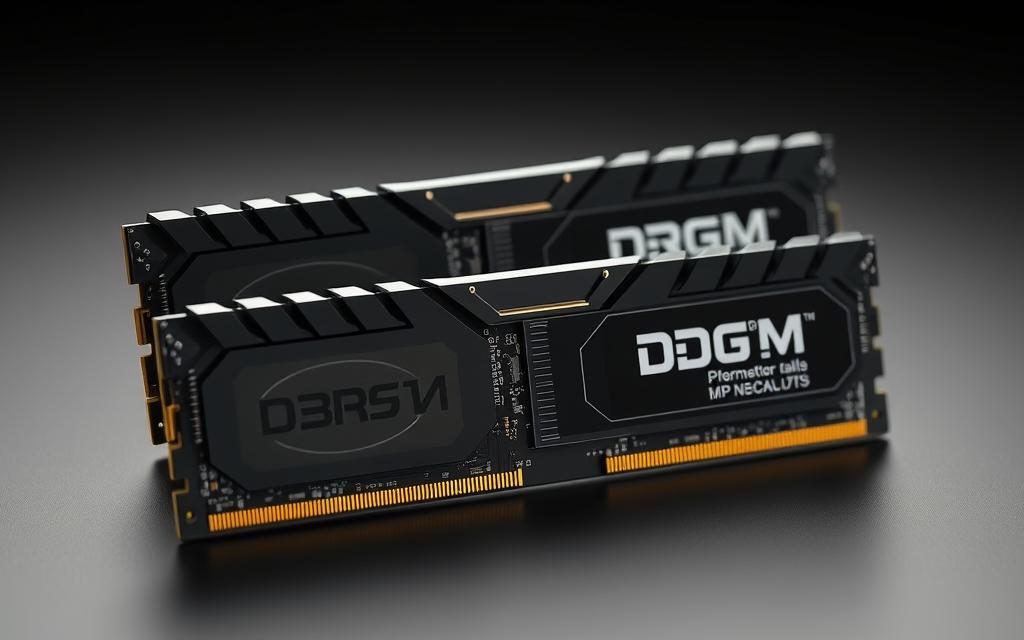
RAM serves as temporary working memory for your system. For 2025, 16GB is the recommended minimum, while 32GB or more benefits content creators and heavy multitaskers. Ensure compatibility with your motherboard‘s supported speeds and consider purchasing matched kits for optimal performance.
Storage solutions in 2025 heavily favor SSDs over traditional HDDs, with M.2 NVMe drives offering the fastest speeds for operating systems and frequently played games. Consider a tiered storage approach with a smaller, faster SSD for your operating system and favorite games, plus a larger capacity drive for general storage.
For more detailed guidance on building your PC, you can visit our comprehensive guide on how to build a PC.
Power Supplies and Additional Components
A critical component often overlooked in PC building is the power supply unit (PSU). Selecting an appropriate PSU is crucial for system stability and longevity.
Calculating Your Power Requirements
To determine your power requirements, you can use a power supply calculator for PC. This tool helps you calculate the wattage needed based on your component selection. It’s recommended to add 20-30% to your estimated wattage needs to allow for future upgrades.
Modular vs. Non-Modular PSUs
Modular PSUs offer the advantage of connecting only the cables you need, reducing cable clutter and improving airflow within your case. This is particularly beneficial for high-performance builds.
Additional Components: Fans, RGB, and Accessories
Additional cooling components like case fans are essential for maintaining optimal temperatures. Cable management accessories can improve both aesthetics and airflow. RGB lighting components have become popular for personalizing PC appearances.
When building your PC, consider ergonomic accessories for your desk setup, such as monitor stands and keyboard wrist rests, to complete your PC building experience.
Step-by-Step PC Assembly Guide
Assembling a PC is a straightforward process when broken down into manageable steps. To ensure a smooth build, it’s essential to prepare your workspace and components carefully.
Preparing Your Workspace and Components
Begin your first build by preparing a clean, static-free workspace with all components unpacked and manuals readily available for reference. This step is crucial for a hassle-free assembly process.
CPU, Cooler, and RAM Installation
When installing the CPU, align the processor with the socket using the marked corners, gently lower it into place without forcing, and secure the retention mechanism according to the motherboard instructions. For RAM installation, ensure the sticks are oriented correctly with the notch aligned to the slot, and apply even pressure until the retention clips snap into place on both ends. You will typically need to install at least two RAM modules for optimal performance.
Motherboard Installation and Cable Management
The motherboard installation starts with placing the I/O shield, then carefully mounting the board to the case using the provided standoffs to prevent short circuits. Cable management is crucial for airflow and aesthetics – route cables through designated channels, use zip ties to bundle similar cables, and connect power cables to the motherboard following the manual’s pinout diagrams.
GPU, Storage, and Final Connections
For the GPU installation, remove the appropriate PCIe slot covers from the case, insert the card firmly into the slot, and secure it with screws before connecting any required power cables. When installing a Cooler Master CPU cooler, apply a pea-sized amount of thermal paste to the CPU before securing the cooler with even pressure. Finally, test the system with just the essential components (CPU, one RAM stick, storage, and GPU if required) before completing the full build to identify any potential issues early.
By following these steps, even a novice user can successfully assemble their PC. Remember to handle components with care and consult manuals when necessary.
Conclusion: Testing, Troubleshooting, and Next Steps
The moment of truth arrives when you power on your newly built PC. First, ensure all cables are securely connected, particularly the CPU cooler and PSU cables. Perform initial testing by connecting a monitor and checking for POST success.
Common issues include loose power connections and improperly seated RAM. Once operational, proceed with OS installation and driver updates. Monitor system temperatures, especially during gaming sessions, to ensure proper cooling.
Celebrate your first build accomplishment! You’ve gained valuable skills for future upgrades and configured a customized system tailored to your needs, ready for your favorite games and applications.
FAQ
What is the most important component to consider when choosing a motherboard?
The CPU socket type is crucial, as it determines compatibility with your chosen CPU. Ensure the motherboard supports your CPU’s socket type, such as LGA 1700 for Intel or AM5 for AMD.
How much RAM is required for gaming and general use?
For most modern games and general use, 16 GB of RAM is sufficient. However, for heavy gaming, content creation, or multitasking, consider 32 GB or more, with a speed of at least 3200 MHz.
What is the difference between a modular and non-modular PSU?
A modular PSU allows you to connect only the necessary cables, reducing clutter and improving airflow. A non-modular PSU has all cables permanently attached, which can lead to a cluttered build.
Should I choose an SSD or HDD for storage?
For faster loading times and overall system responsiveness, choose an NVMe SSD. For mass storage, consider a hard disk drive (HDD) or a secondary SSD.
What is the importance of cable management in a PC build?
Proper cable management improves airflow, reduces dust accumulation, and enhances the overall aesthetics of your build. It also makes future upgrades and maintenance easier.
Can I use a CPU cooler with my CPU, or do I need to buy a separate one?
Some CPUs come with a stock cooler, but for better performance, consider a third-party CPU cooler. Check compatibility with your CPU socket type before making a purchase.
How do I determine the correct power supply wattage for my build?
Calculate your total power requirements by adding the wattage of your CPU, GPU, and other components. A general rule of thumb is to add 10-20% to the total wattage for headroom.
What are the benefits of using a liquid cooling system?
Liquid cooling offers superior temperature control, reduced noise, and increased overclocking potential compared to air cooling. However, it can be more complex to install and maintain.
Transferring photos and videos from your iPhone to your computer is essential to free up valuable storage space on your device. This comprehensive guide will walk you through three reliable ways to do so without losing quality or metadata. Whether you prefer a direct connection, cloud-based solution, or specialized software, this article covers all the…
Moving photos from your iPhone to your computer is a common task, but it can be daunting with the various methods available. This comprehensive guide is designed to simplify the process for Windows users. We’ll explore multiple approaches, including wired and wireless transfer options, to cater to different user preferences. Native Windows tools, Apple software,…
HoYoverse’s latest free-to-play action RPG, Zenless Zone Zero, is now available to download on PC without any cost. This comprehensive guide will walk you through the official methods to obtain the game, ensuring a secure and updated installation. The game was officially released on July 4, 2024 (GMT+8) and can be downloaded from the official…
Gamers often face a daunting question when considering new game purchases: whether their computer can handle the latest titles. Checking system requirements is crucial to avoid wasting money on games that won’t run properly. Understanding your computer’s specifications and the requirements of the game is essential. Fortunately, compatibility checking tools have evolved, making it simpler…
Gaming on PC offers a unique experience, and using a wireless controller can enhance it. The DualShock4, designed for the Sony PlayStation4, is compatible with PC games, offering a comfortable gaming experience. This comprehensive guide will walk you through the process of connecting your controller to your Windows PC. We’ll explore both wired and wireless…
Key Takeaways The Crystal Lake & Watershed Association (CLWA) is leveraging cutting-edge geospatial technologies to understand and address historical changes to Crystal Lake. LIDAR and 3D modeling will digitally reconstruct the pre-1873 shoreline, revealing the original contours of Crystal Lake before human intervention. This reconstruction directly addresses the “Tragedy” of the 1873 channel project, which…